Download
Thonny is an excellent Python programming environment for beginners.
Please download Thonny for macOS here.
Install
You should then find the installer file in your Downloads folder:
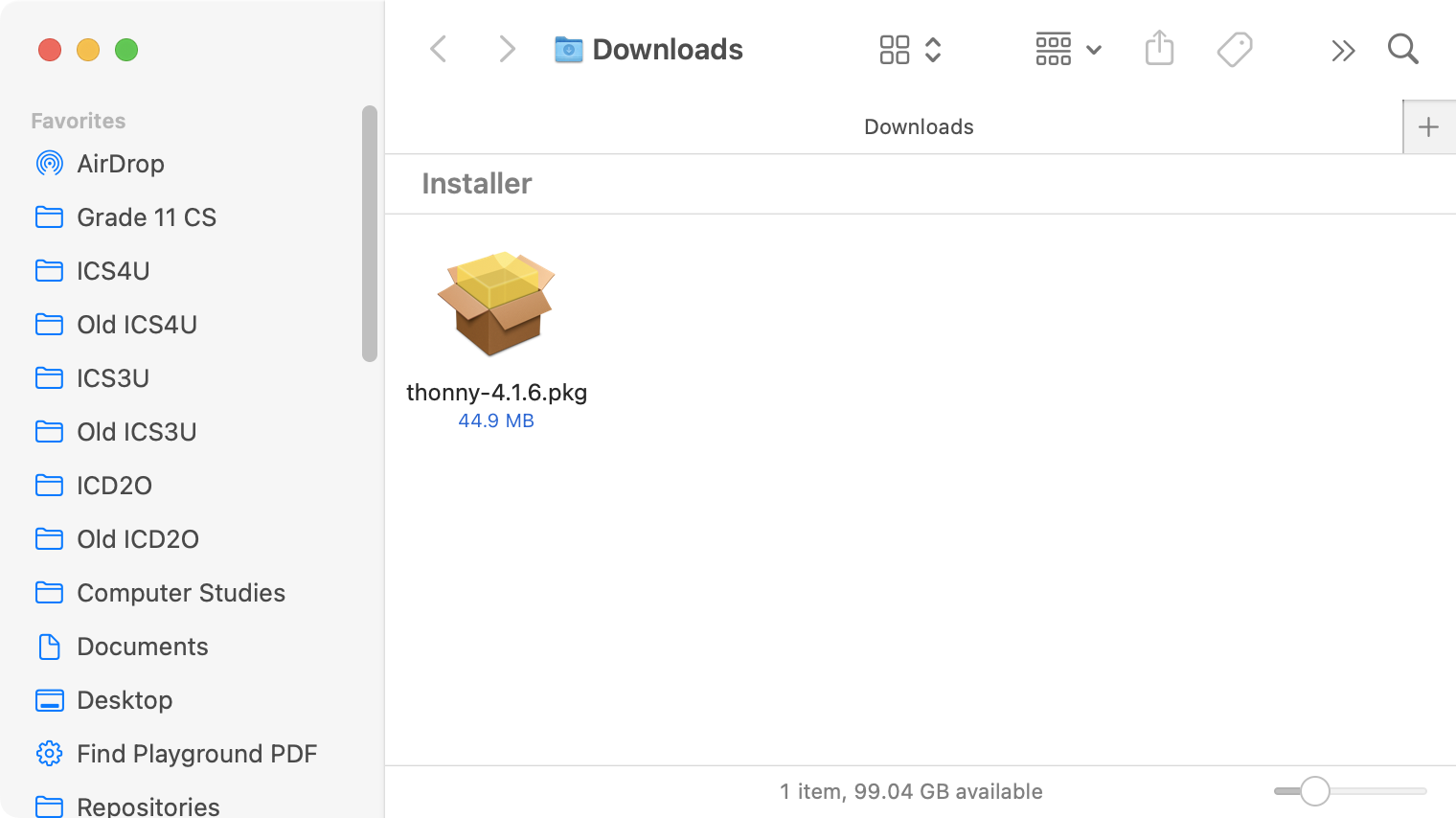
Double-click that file to open it, and you will see this screen:
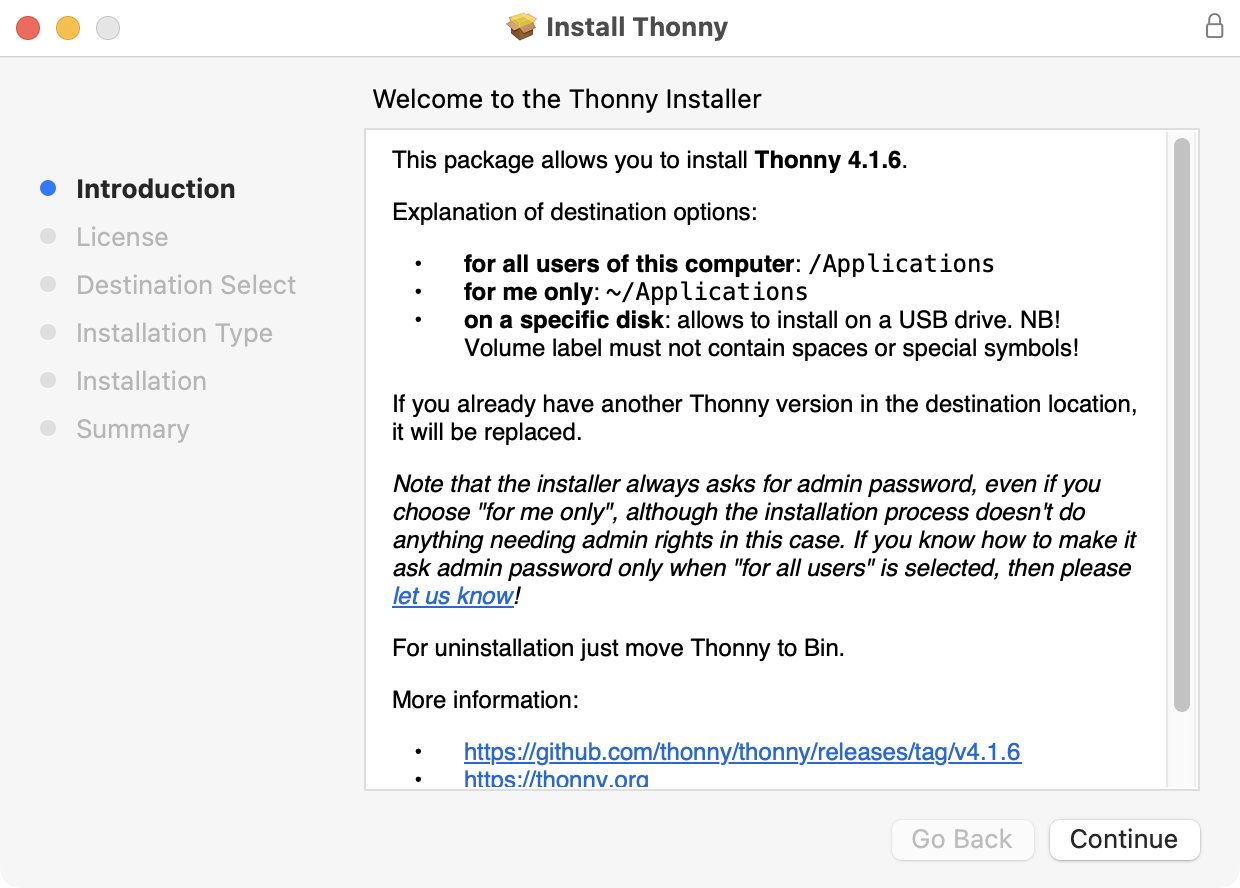
Press the Continue button, and you will see the software licensing screen:
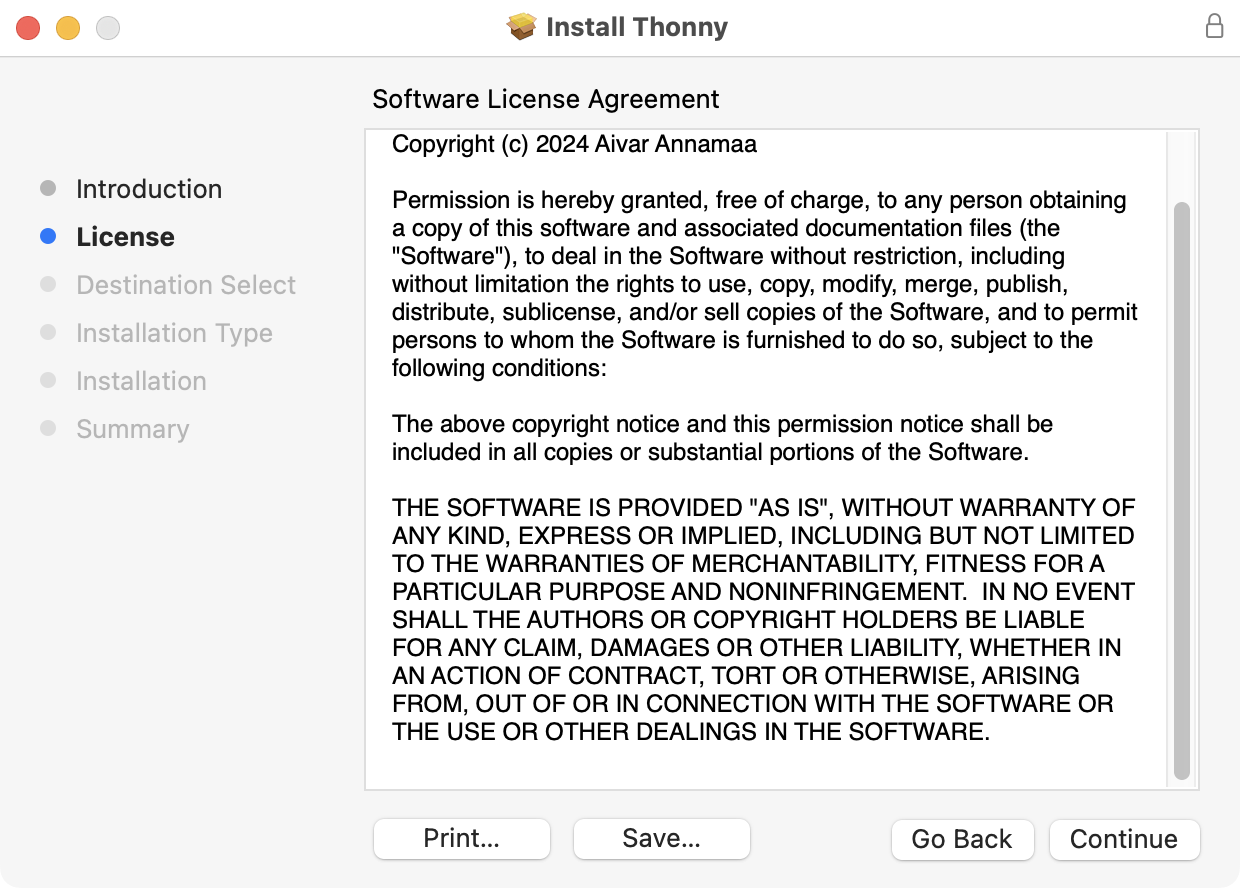
Press Continue, then Agree, and you will see this window:
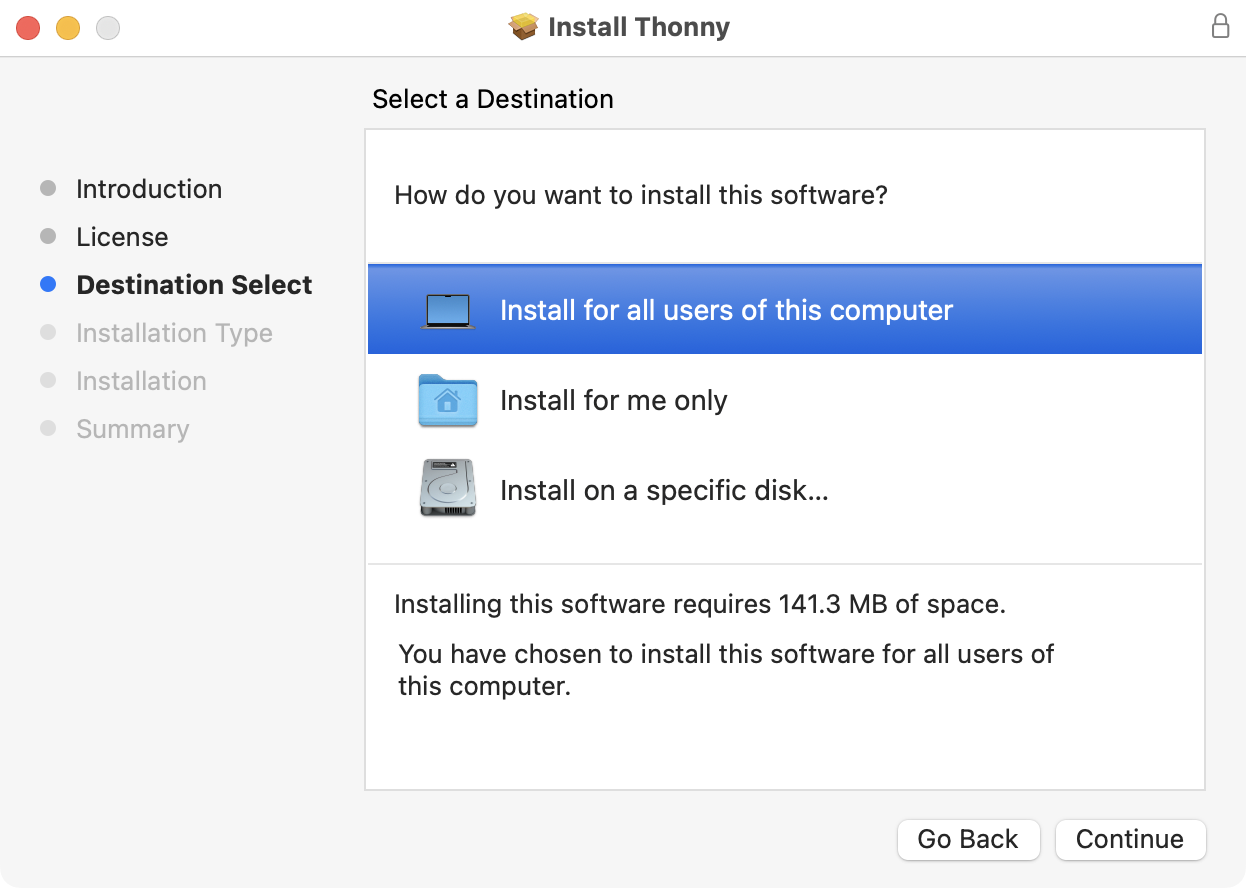
Go ahead and click Continue and you will see the following:
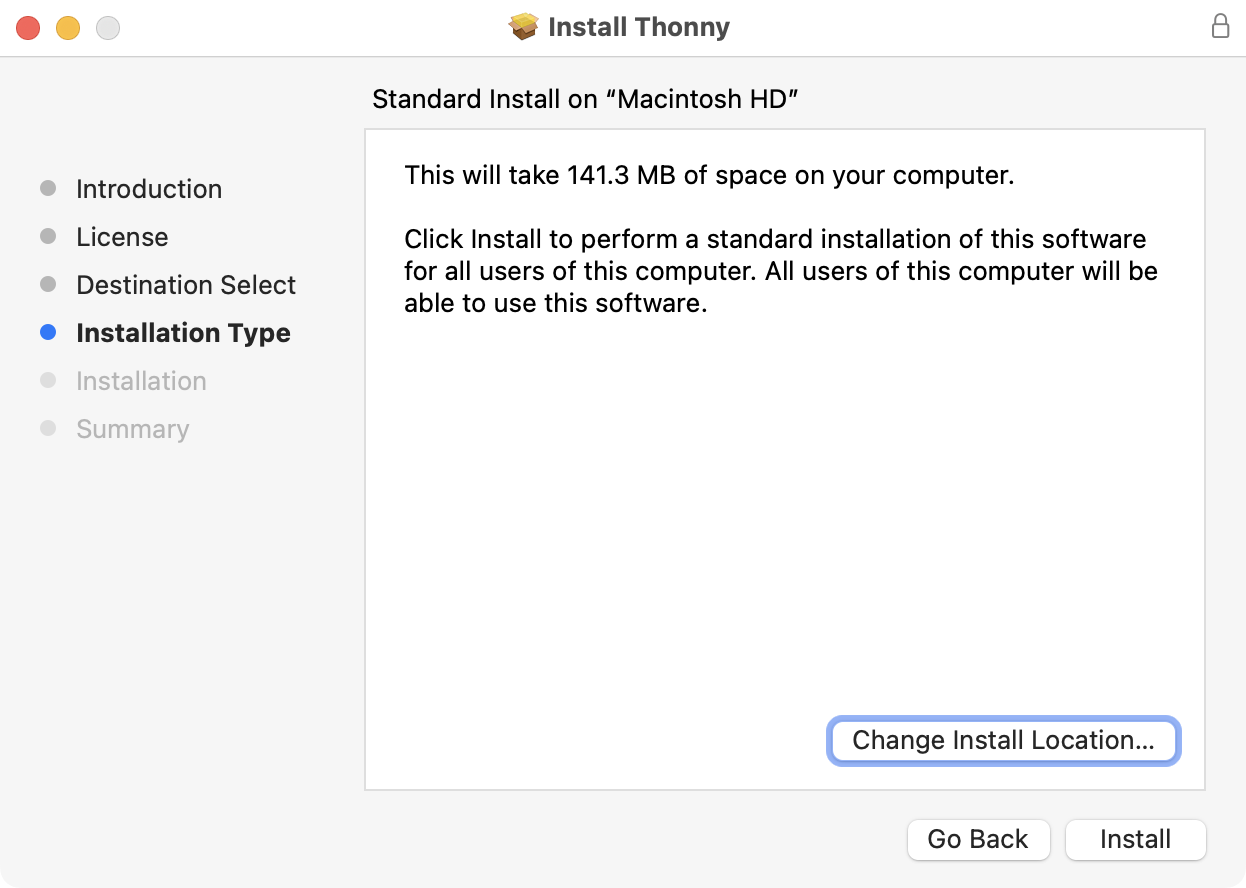
Then click Install, and you will see this window appear:
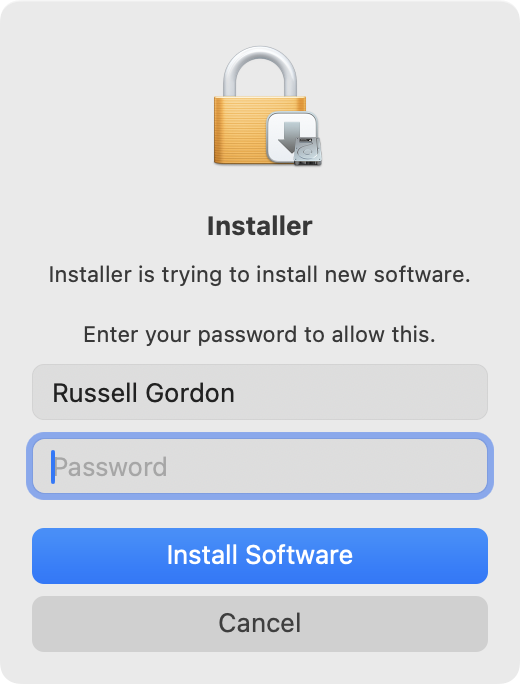
Type the password for your user account on your computer – this is the password you use to log in to your computer when it boots up.
Then press Install Software.
After this, the software will begin to install itself on your computer:

If all goes well, you will see this when you are all done:
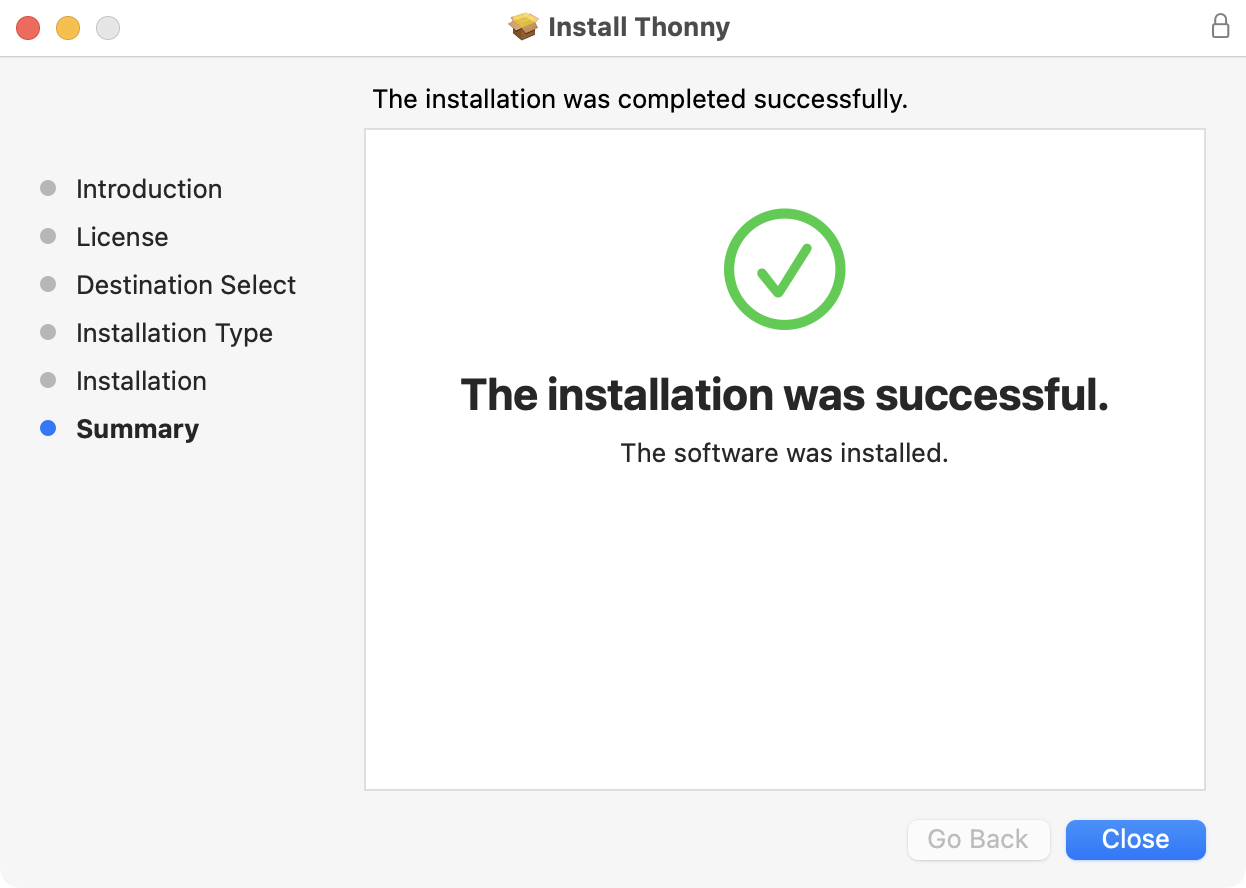
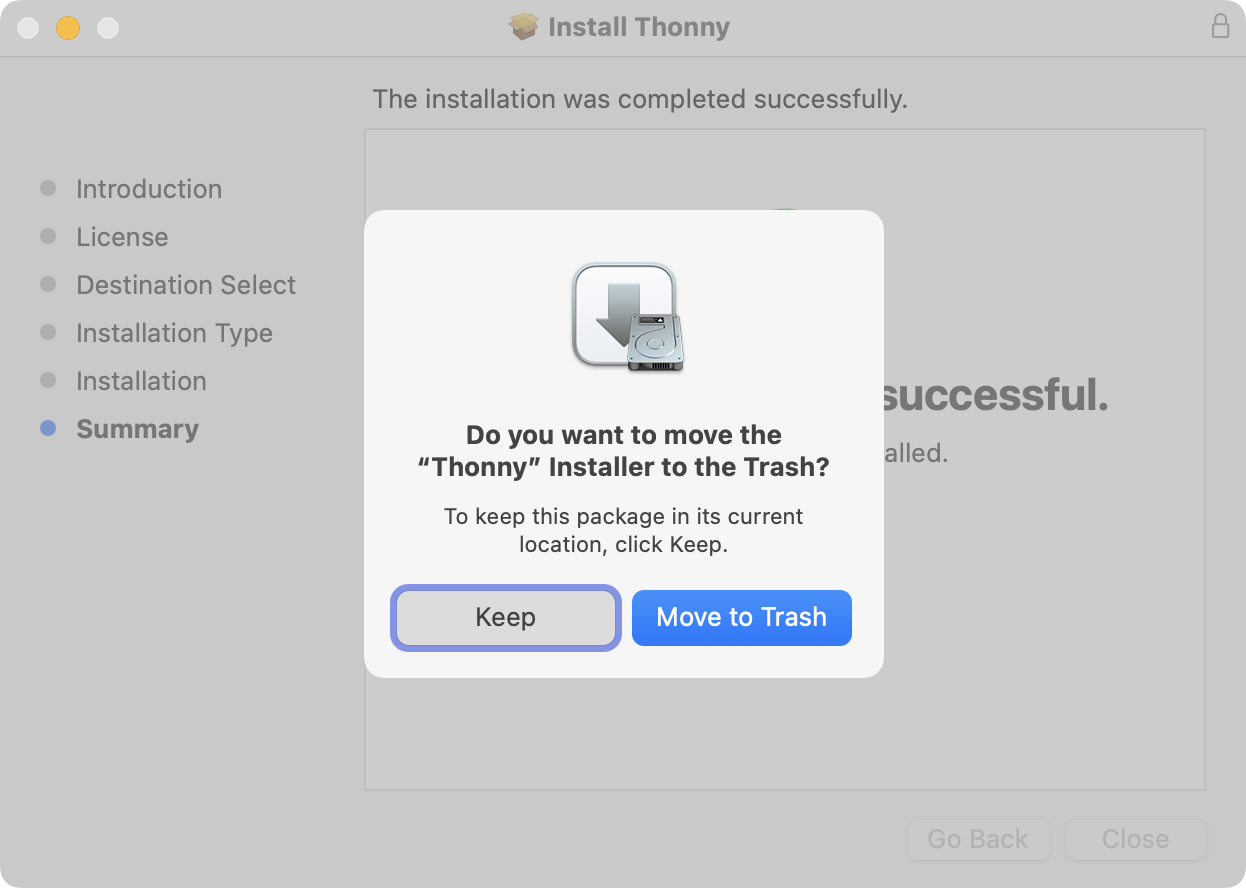
Press the Close button, and you will be asked whether you wish to move the installer file to the trash – choose Move to Trash as there is no need to keep this file around:
Running Thonny
To launch Thonny, press Command-Spacebar on your keyboard, and the search interface will show up:

Type Thonny and then press the Return key to launch the app:

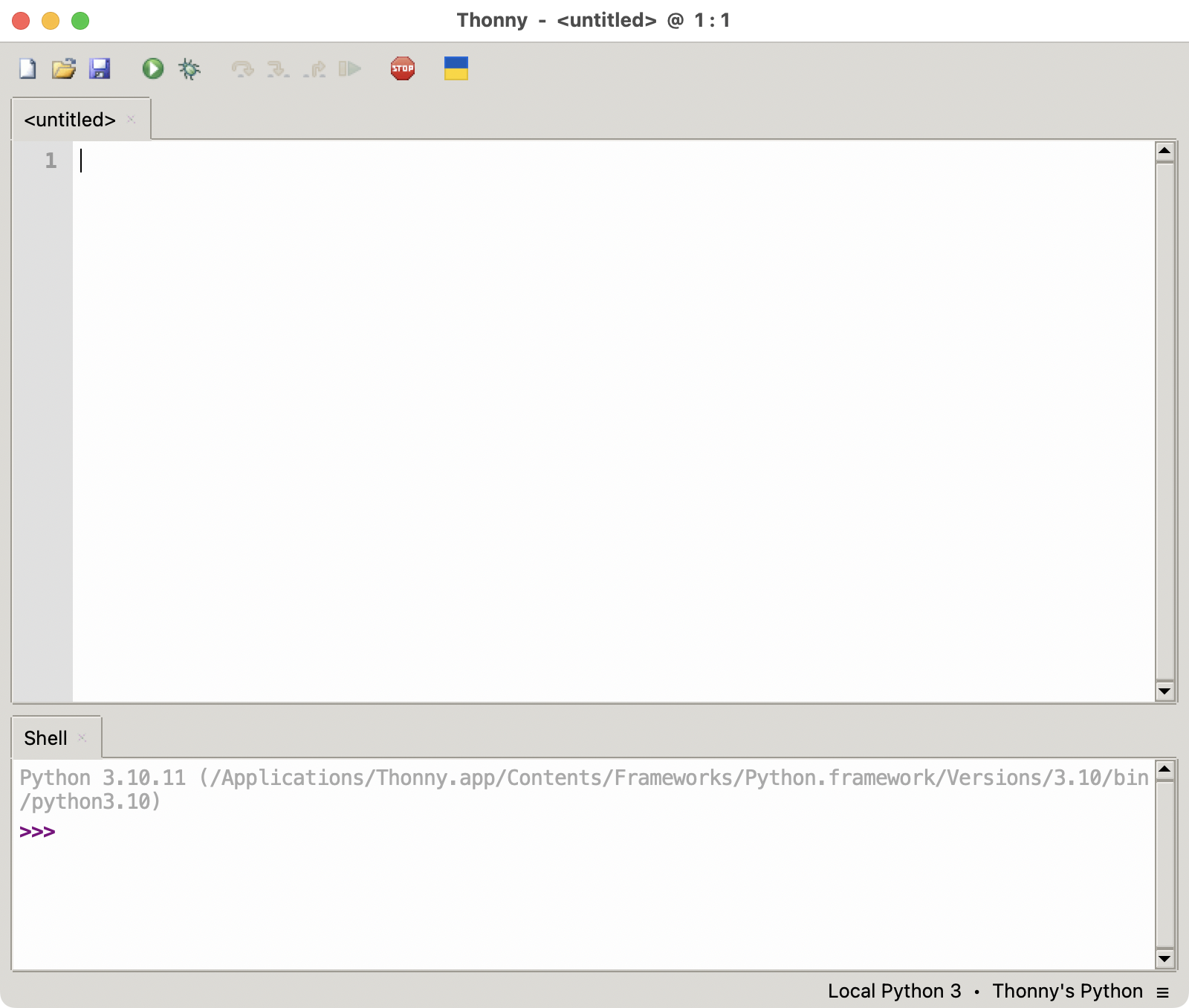
A new source code file is created automatically for you. The user interface will look like this:
Your first program
Add the following code to the code window:
print("Hello world")… then press Command-R on your keyboard to run the code, or tap this button:

You will see the output in the Shell area at the bottom of the window:

Saving a program
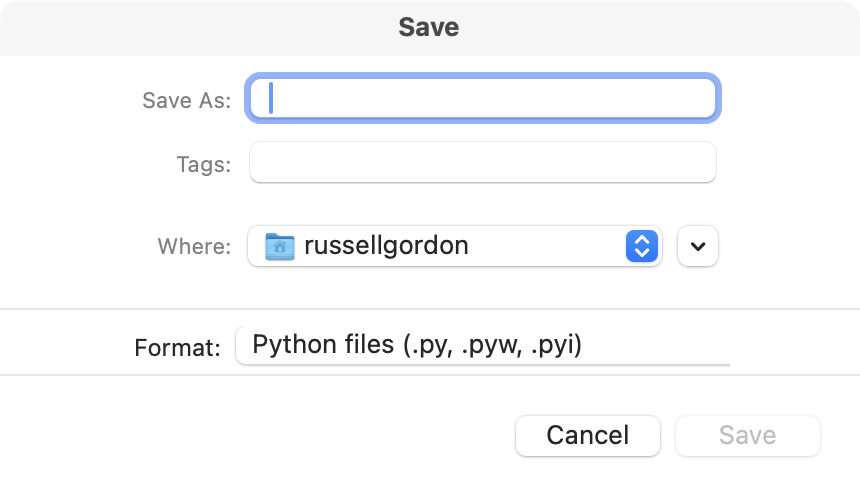
To save your work for future reference, press Command-S:
TIP
By convention, Python programs are always saved in a file with a file extension of
.py.
Name your new program HelloWorld.py – if you press this button:
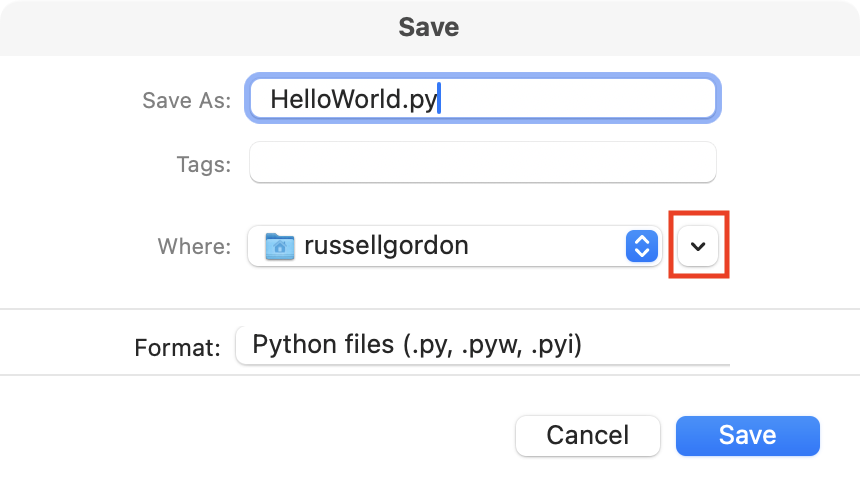
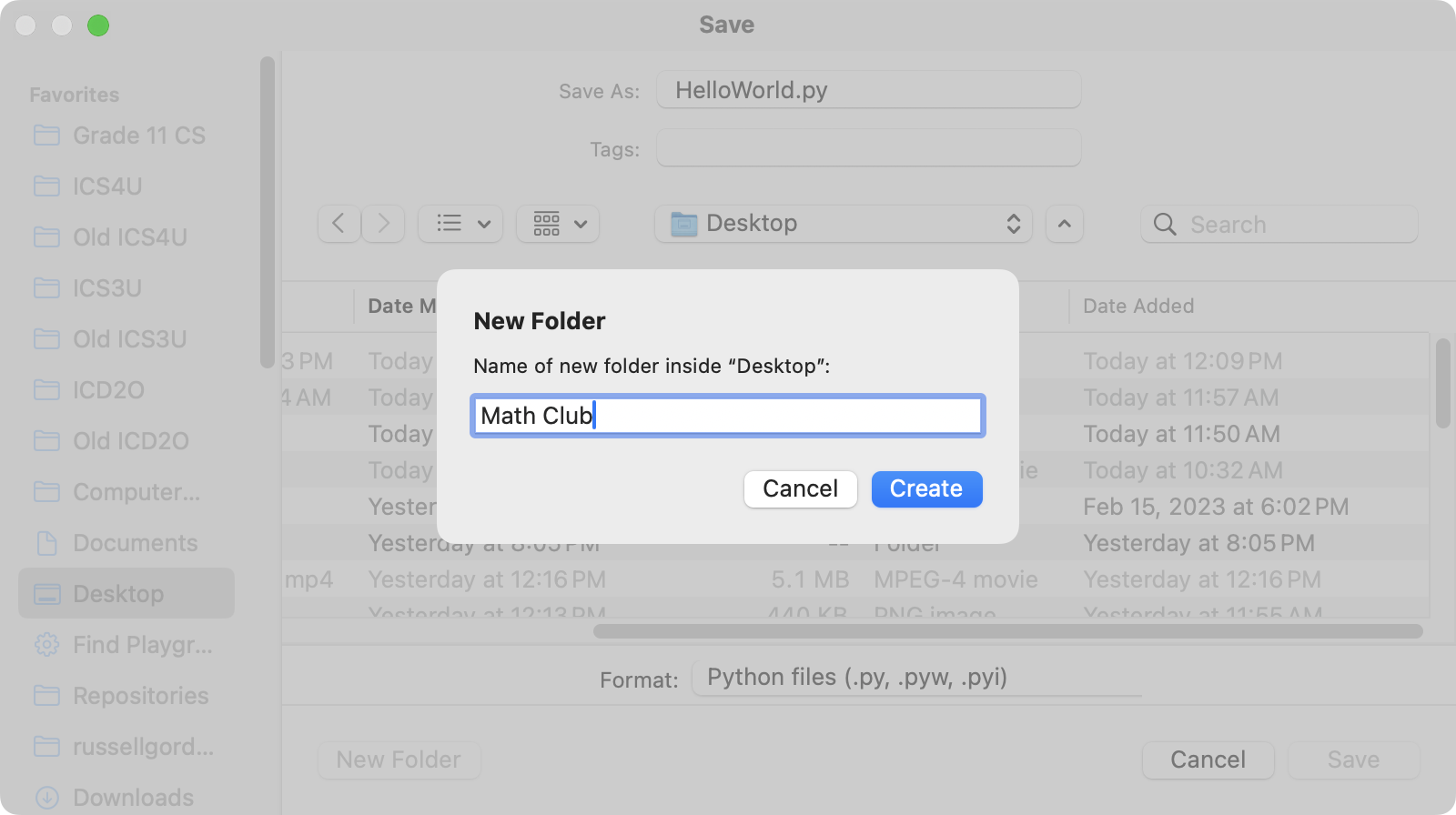
… you will be able to more easily navigate to other folders on your computer – you might consider making a new folder named Math Club:
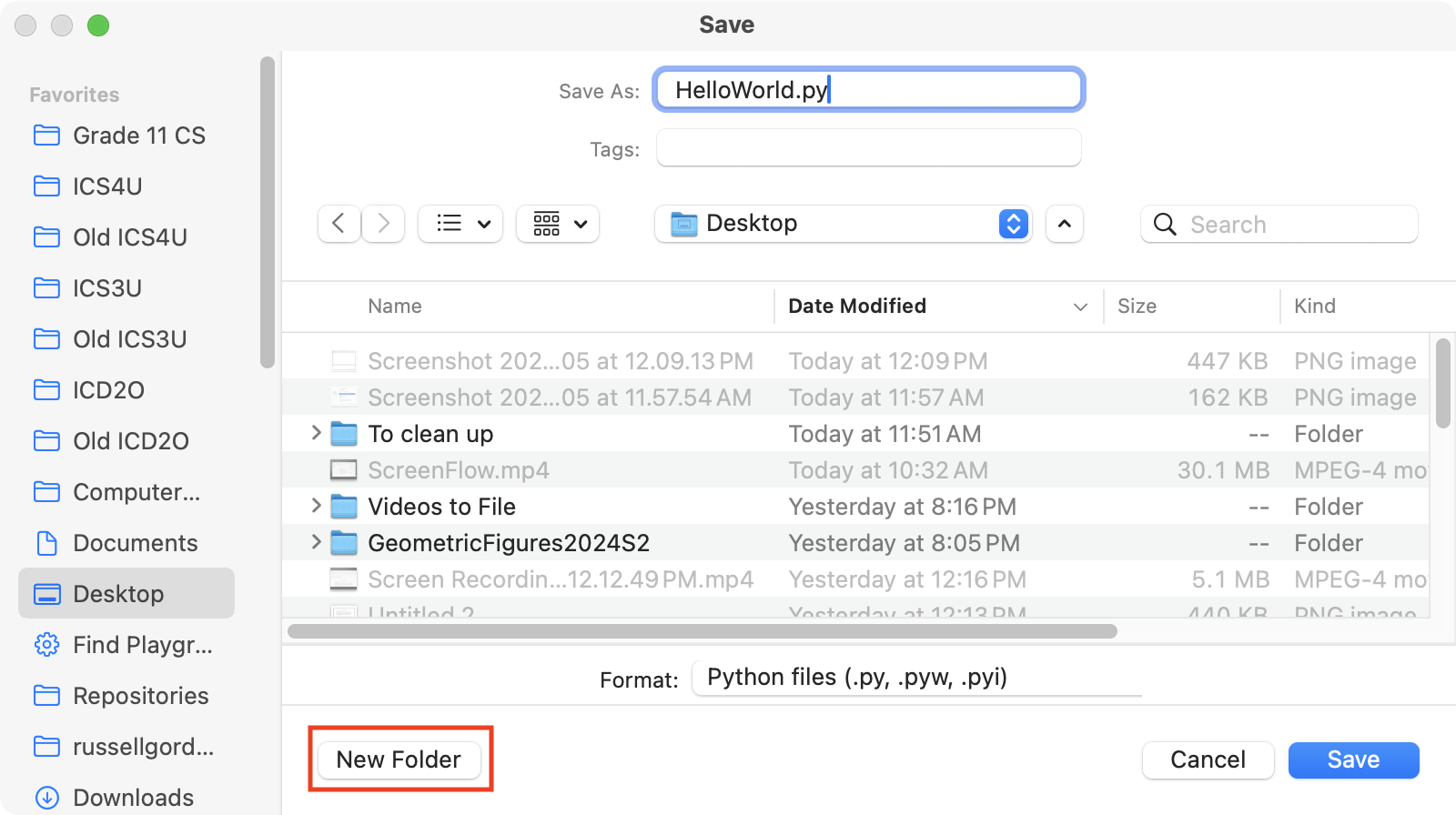
Like this - press Create to make the new folder:
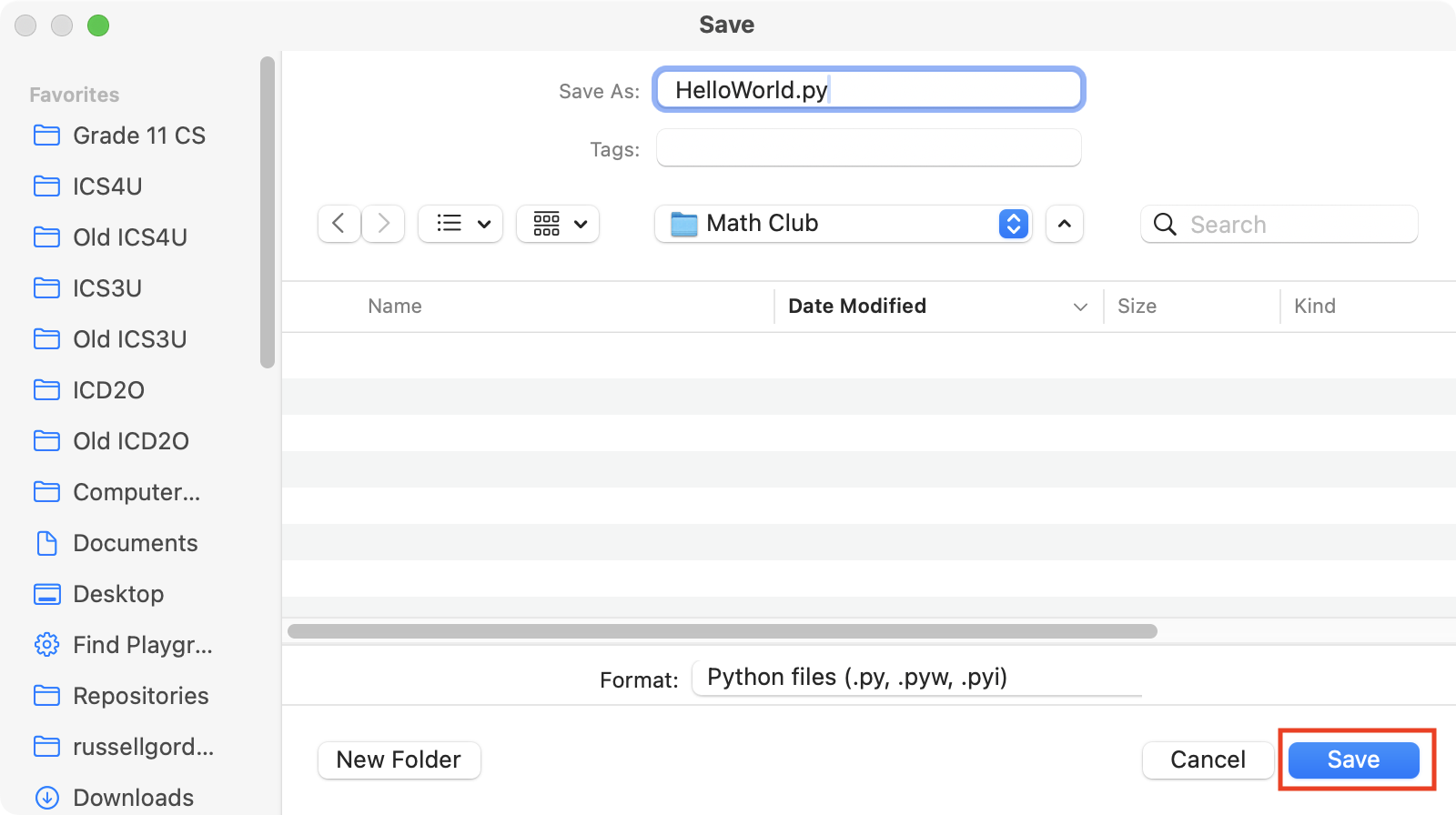
Then press Save to save your program:
Creating a new program
To create a new program, press Command-N:
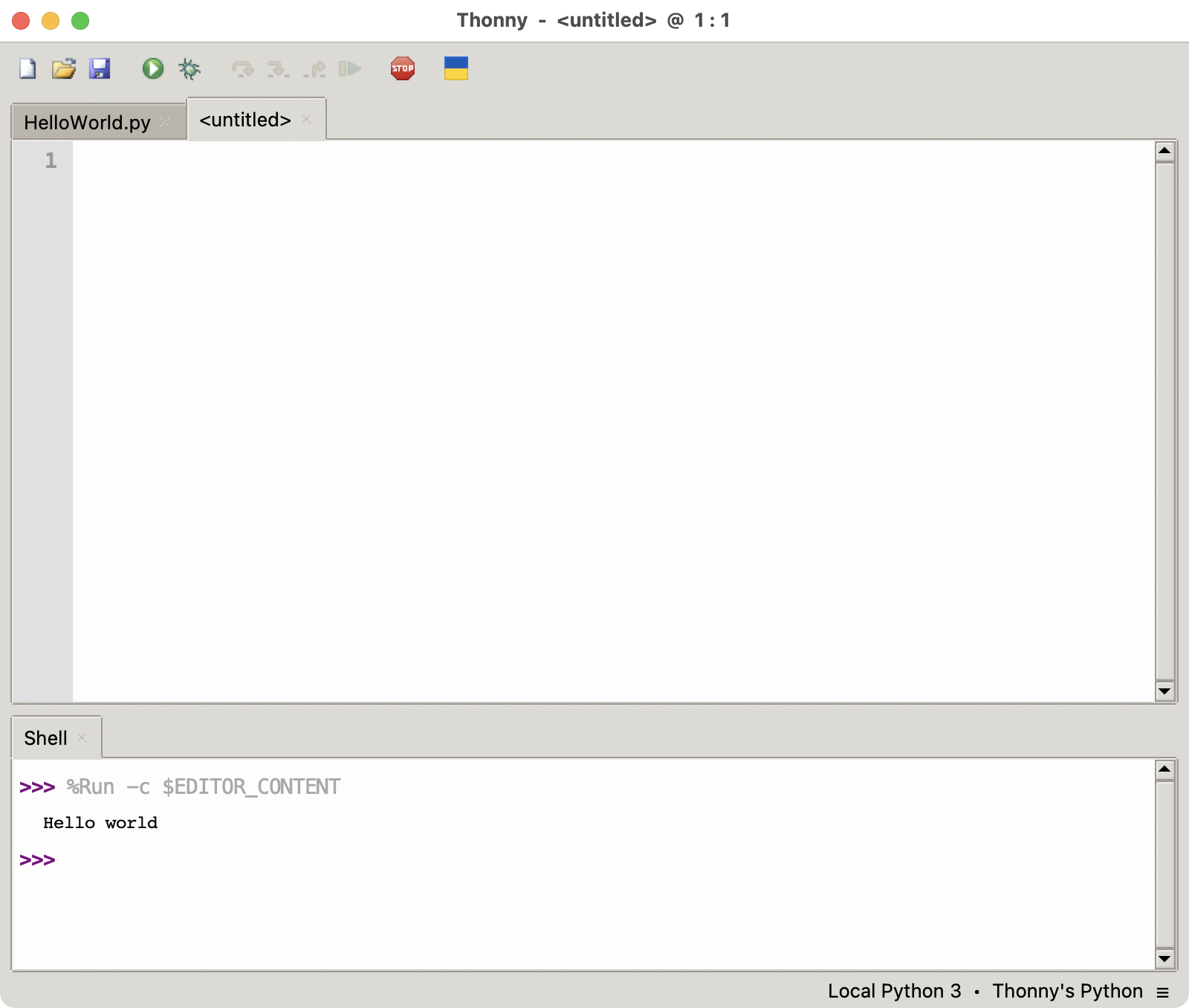
Remember, you can run your code using Command-R and save your code using Command-S.
Have fun! Try out these beginner exercises in Python to get started with preparing for the Canadian Computing Competition.